We have introduced PCs into all the conference rooms with large screens. We have done this to make it easier to present. To present, all you need to do is turn on the PC and keyboard and big screen, login and you are presenting. From the PC, you will be able to access your network storage and show files on USB drives. Instructions are below.
1. Turn on PC. Turn on PC by turning on the screen power button (front) and the power button on the CPU (box on the back of the screen)
2. Make sure display screen is turned on.
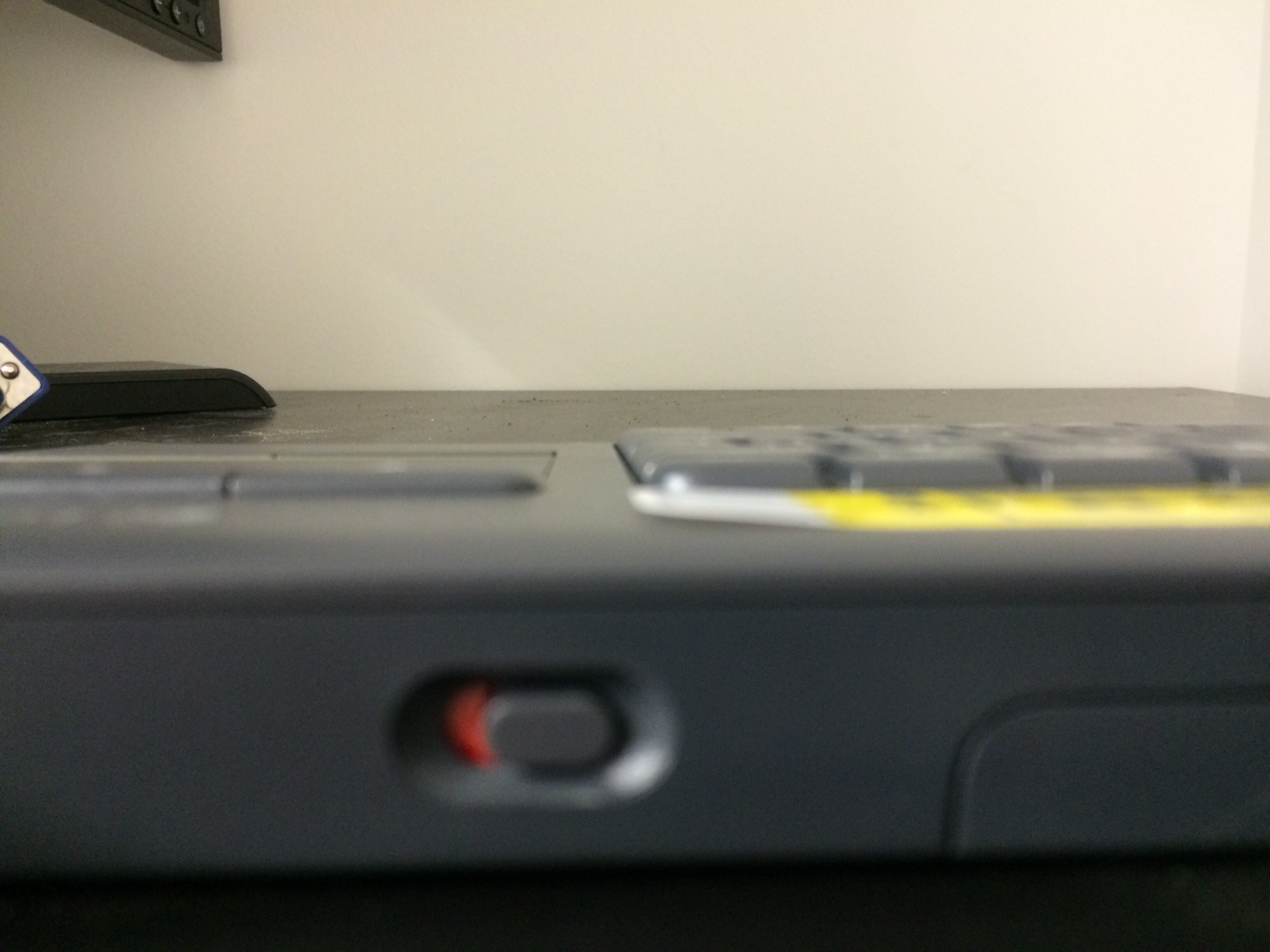
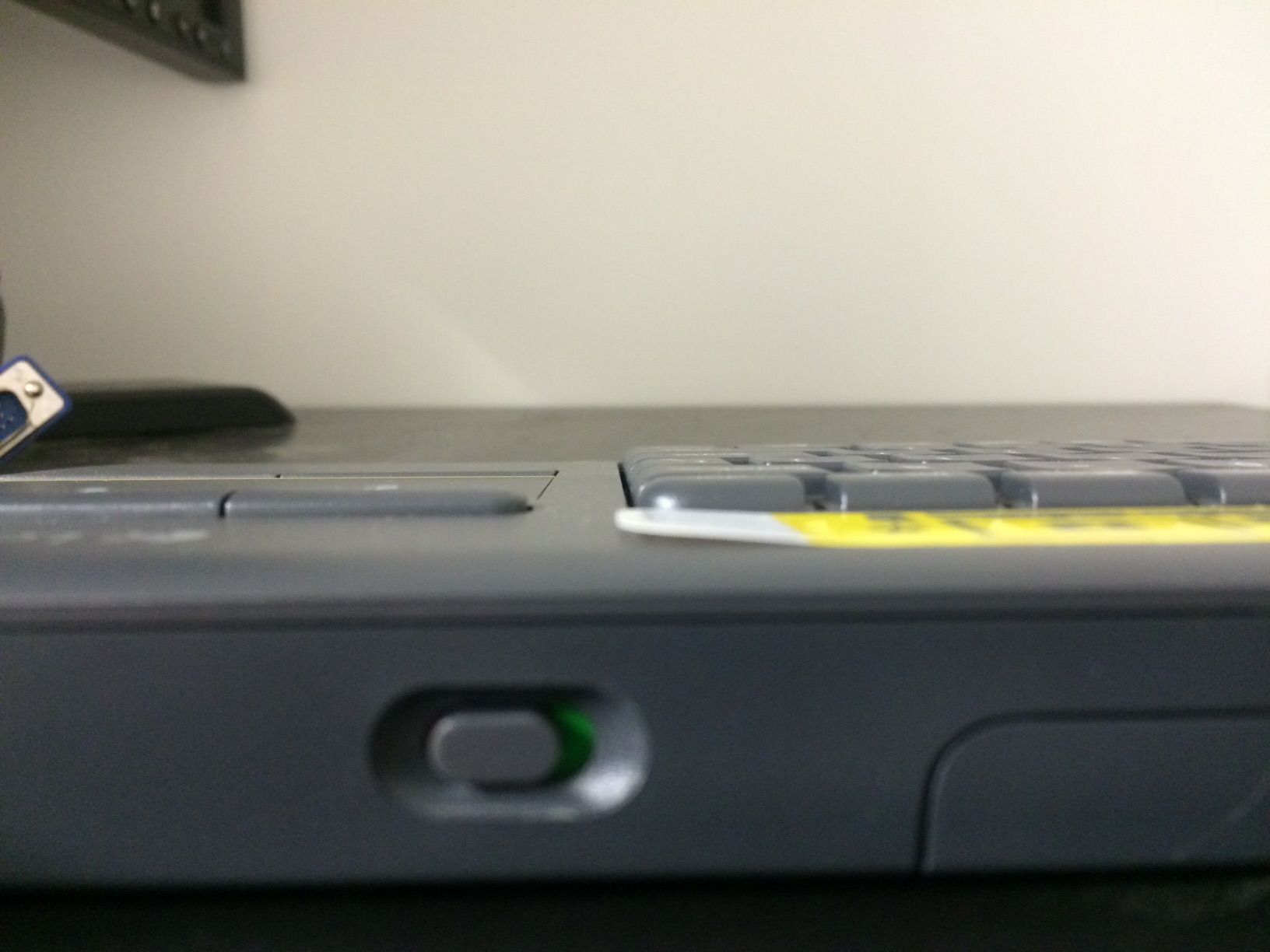
3. Power on the wireless keyboard. The button in on the top right side of the keyboard.
4. Log into the computer as you would on your own computer using your normal CPCS ID and password combination. Wait for your desktop to come up. The first time you do this, it will take a few minutes. You will be able to access anything on your network storage. You can also use a USB drive to bring data to the machine.
5. You should see the computer screen on the large display screen.
6. You can use either Skype or VeeSee for video conferencing.
7. Please log out of the computer (make sure to logoff and not lock the screen) when done.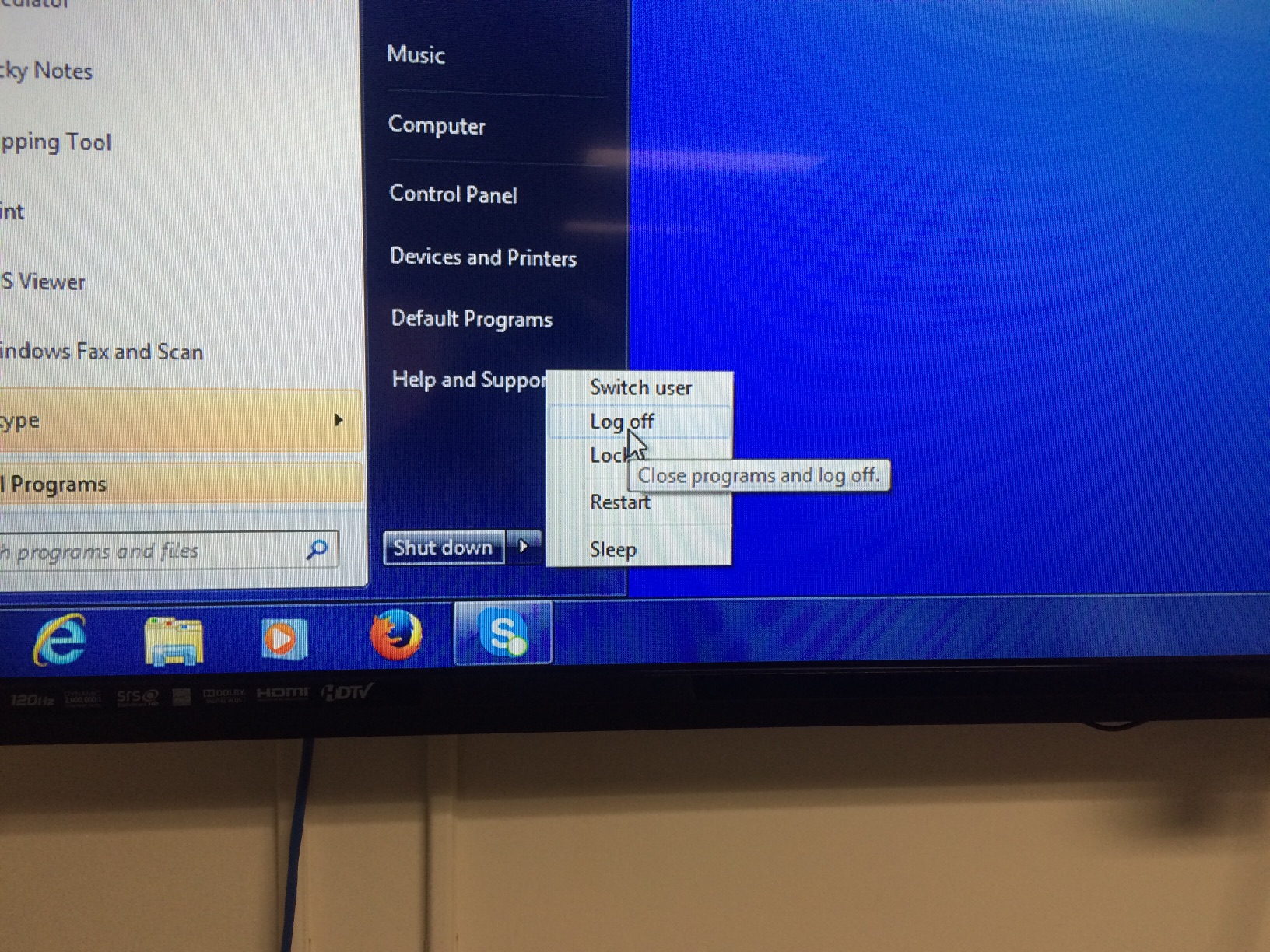
8. Power off keyboard when done. If you don’t, it will run down the battery.