CPCS IT locks down desktops so staff cannot install most programs. While this is necessary from a security perspective, we recognize it can be very frustrating.
To address this, we have released an “app store” of applications and updates that staff can download themselves. This “app store”, called Software Center, hosts many of the most common applications staff need to install, including video driver programs (to allow playing videos received from DAs), common browser plugins and updates (Flash, Silverlight, Java), browsers (Chrome and Mozilla Firefox), etc.
We will add more programs as warranted (for example, we are looking at adding Skype and Vsee). If you have a program you wish added, please email [email protected]. If we can (i.e., if licensing allows AND it is technically feasible [not all applications work with our tool]), we will install it.
Instructions
To use “Software Center” to download an application or update, follow these steps:
1. Open the Windows start menu (Left most icon in tool bar)
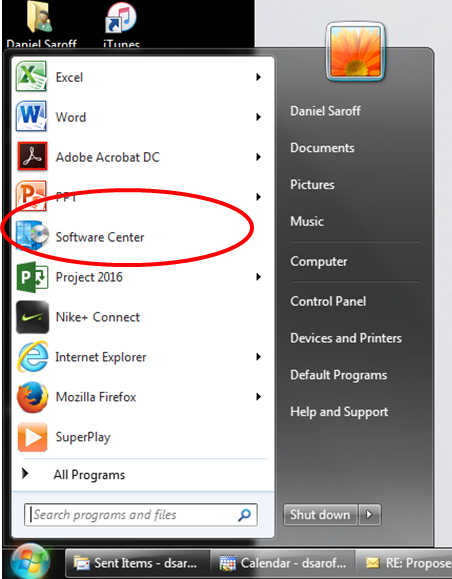
2. Click on Software Center.
Note: If you don’t see “Software Center” in the menu, you can also find Software Center by typing “Software Center” in “Search Programs and Files” in the Start Menu
3. Select the application or update you wish to install, and select “Install Selected” (see below. Click image to enlarge). It will then begin to automatically install. Once completed, reboot your computer to have the changes take effect.
