Learn how to add custom info to Eventbrite order confirmation emails, add a notice or additional terms to your checkout process, and send mass emails to your event attendees:
Customize Email Confirmations
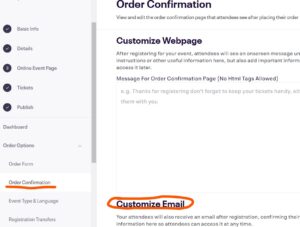
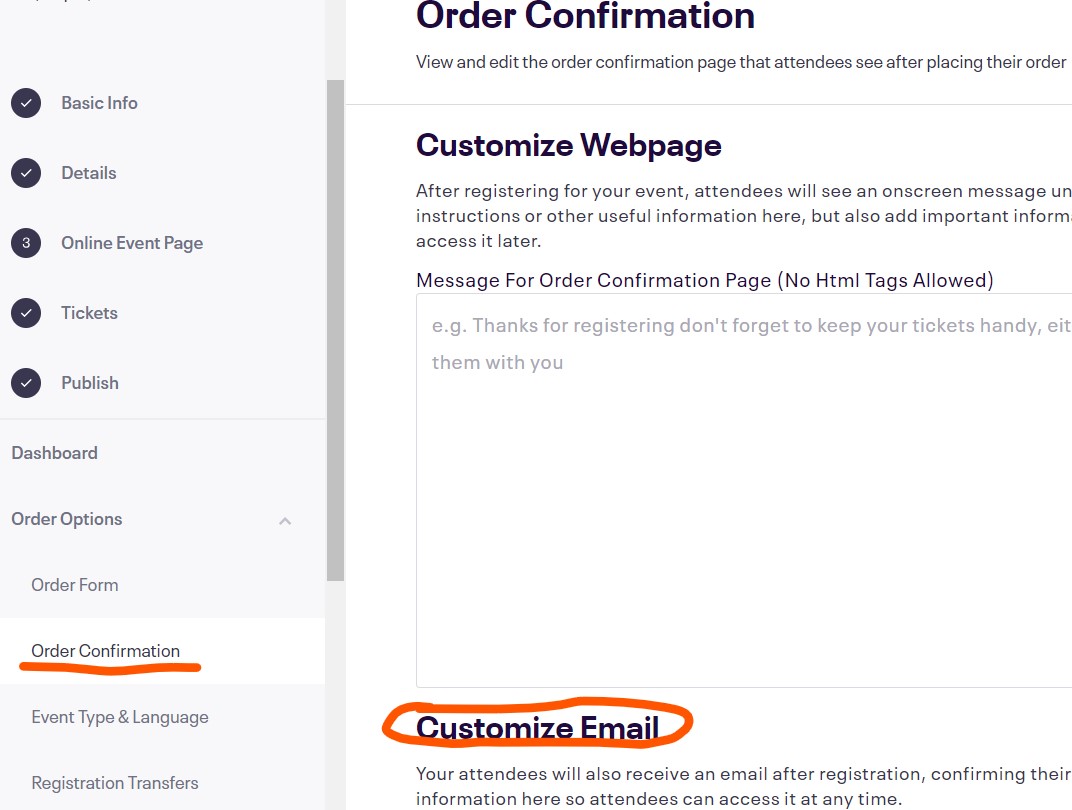
- From the Dashboard for your Event, click Order Options from the left bar.


- Select Order Confirmation, then go down to Customize Email to add info to the email attendees receive after registering.
Require attendees to accept additional terms in order to checkout
- Under Order Options, select Order Form.
- On the Order Form page, scroll down to the bottom of the list of standard question options and click Add custom question

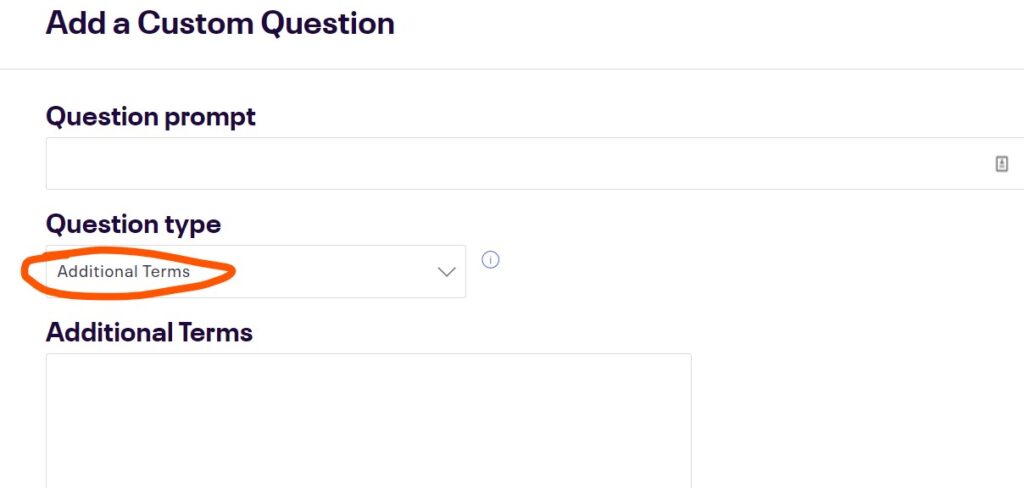
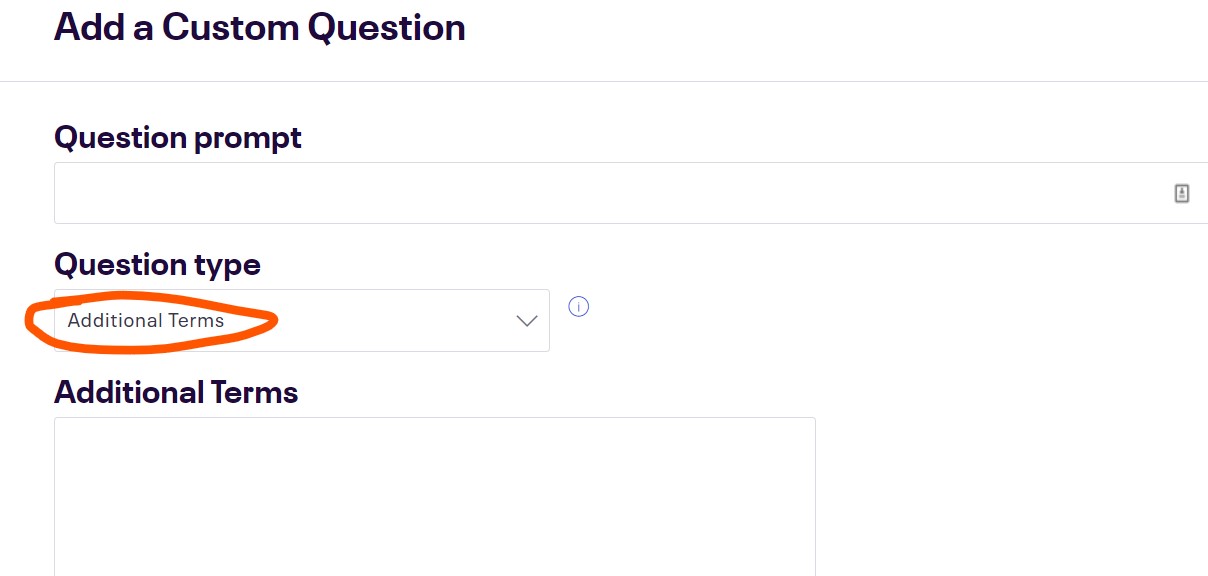
- Choose Additional Terms as the question type and add your terms to the textbox. Attendees will need to accept the terms to complete checkout.

Mass-email all registrants
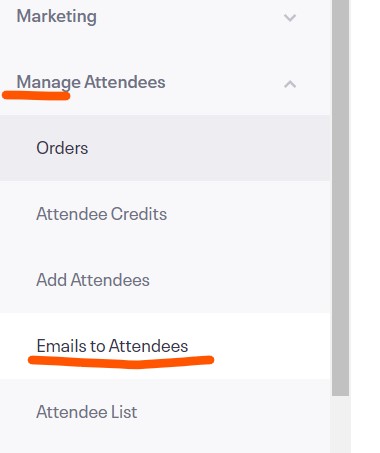
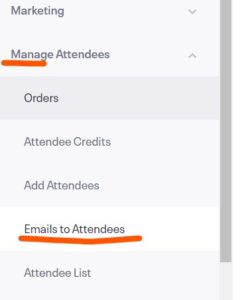
- From the Dashboard, select Manage Attendees from the left bar, then select Emails to Attendees
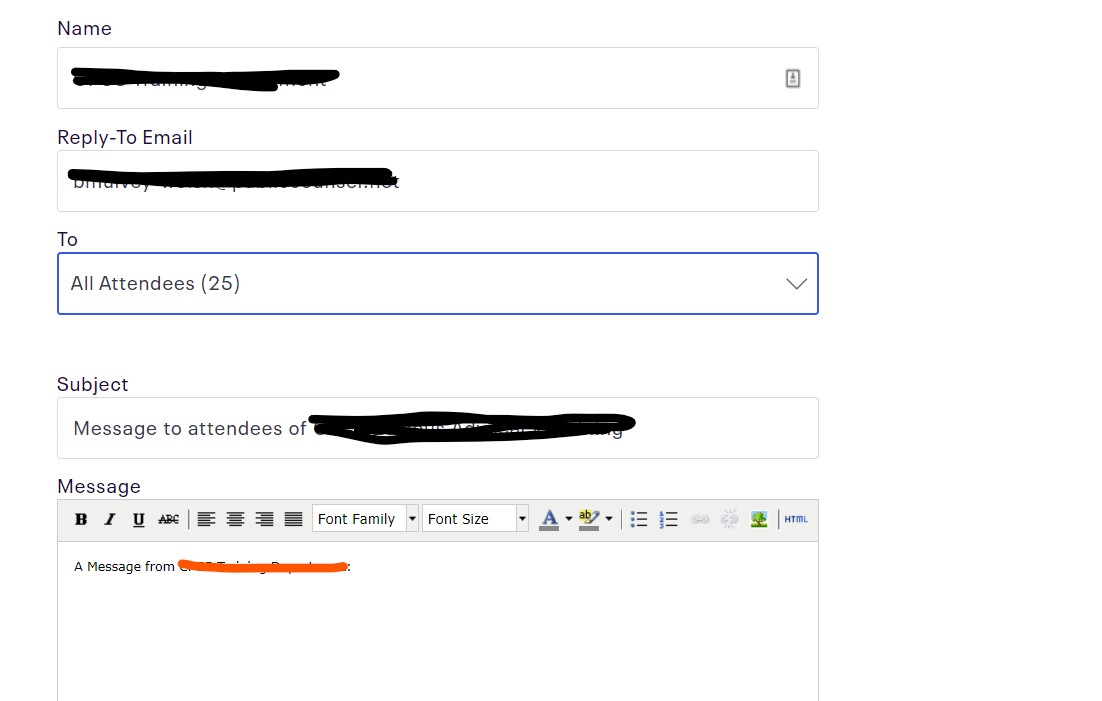
- Click Create new attendee email, then add your email text & info.
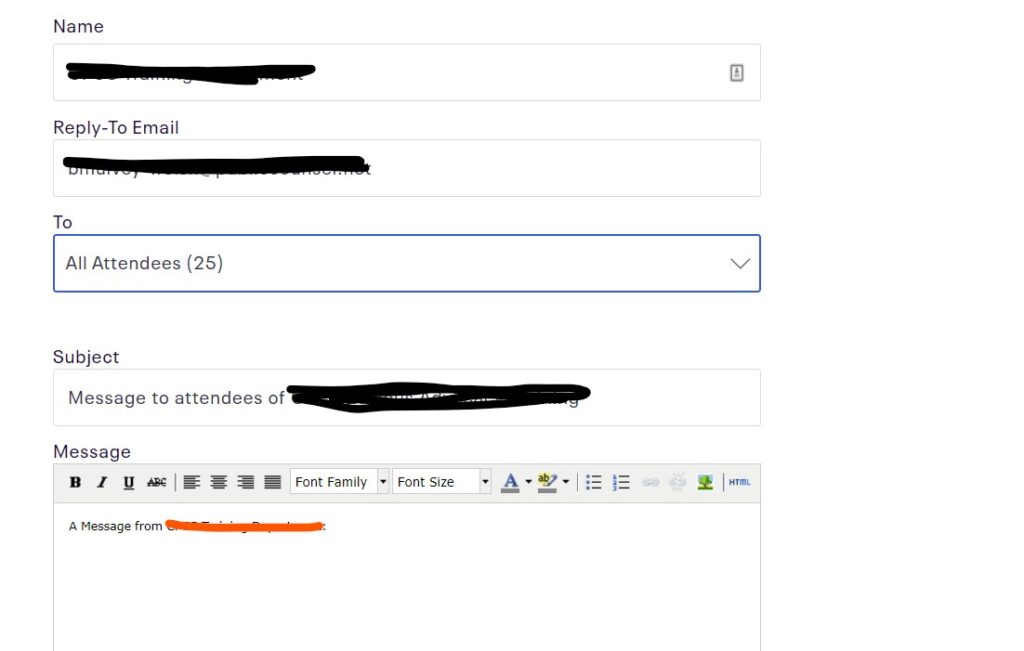
- You can send the email to all attendees, or specify certain groups:

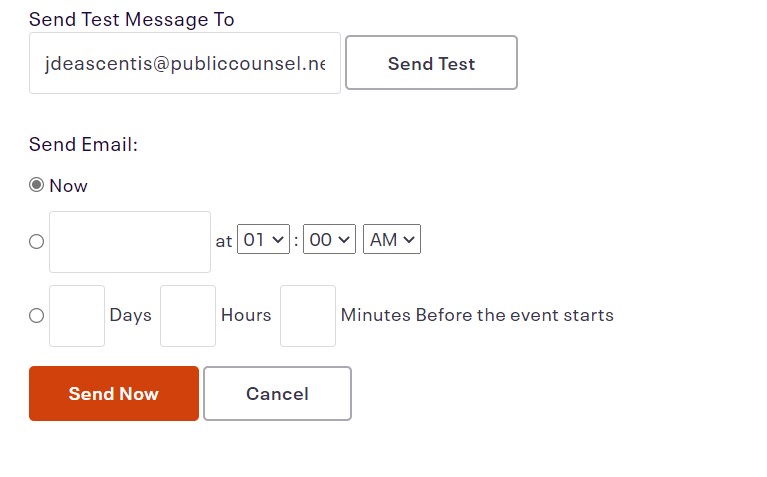
- See how it looks with a Test Message, then either Send Now, or schedule it for a future time.