To improve the efficiency of booking and using rooms across the Agency, we have created a means in Outlook to effectively book conference rooms. This new system provides the benefits of:
- Booking a conference directly (freeing AA time for more critical tasks) and simplifying setting-up meetings
- Booking a room as if you are inviting a person. You can see whether that room is free or busy
- Canceling a meeting automatically frees-up the conference room
- Moving a meeting shows you if the room is available or booked for that new time
- Being able to book a room and staff in one calendar, rather than two, which reduces the chance that you forget to book the room (which I have done)
- Being able to see and book conference rooms across the Agency (great when visiting another site for a meeting)
To book a conference:
- Create a meeting invite as normal (It is important you understand the basics of using Outlook to book a meeting before trying to book a room. For instructions on booking a meeting, click this link and start at page 7)
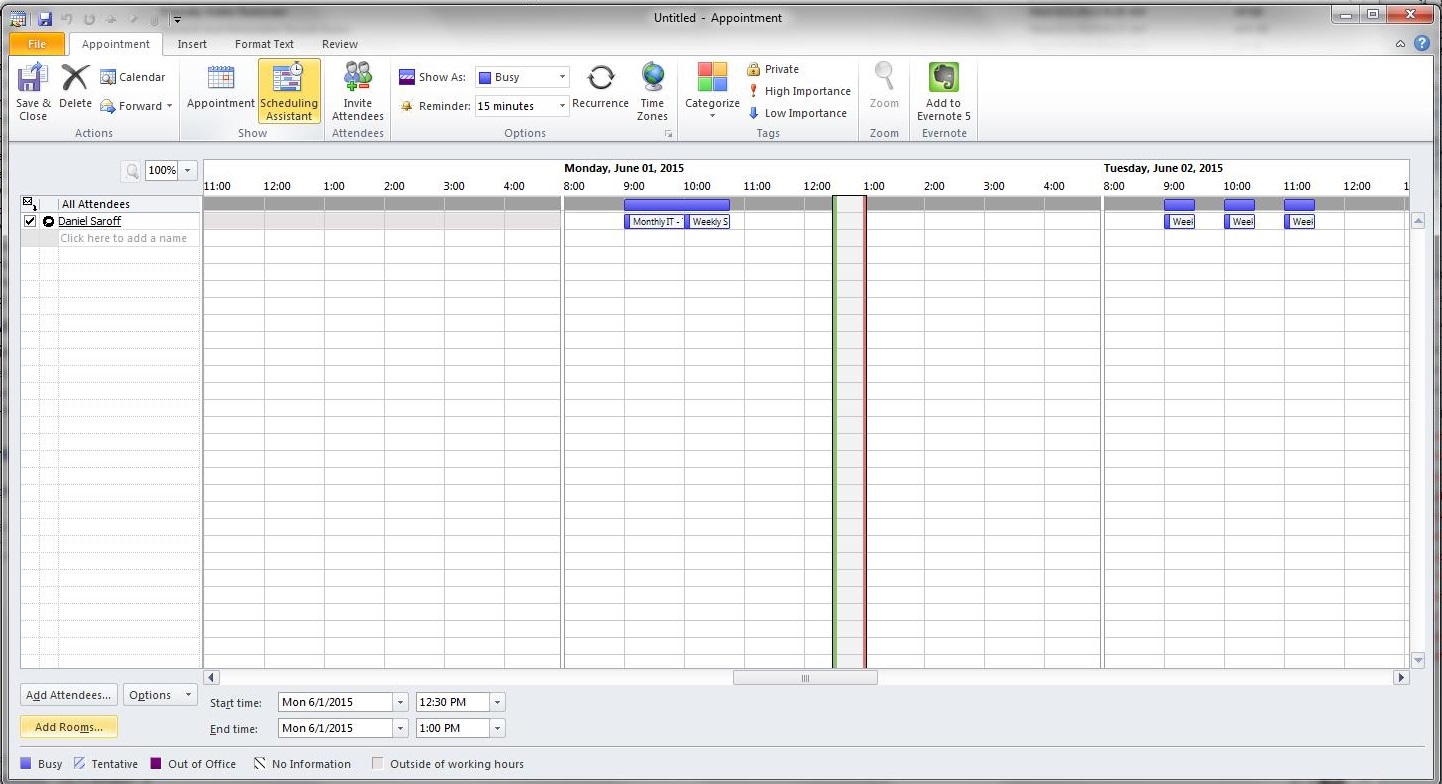
- Click “Scheduling Assistant” tool bar to invite the staff you wish to attend and add the conference room

(click image to enlarge) - Add staff
- Click “Add rooms” button at the bottom to add a conference room
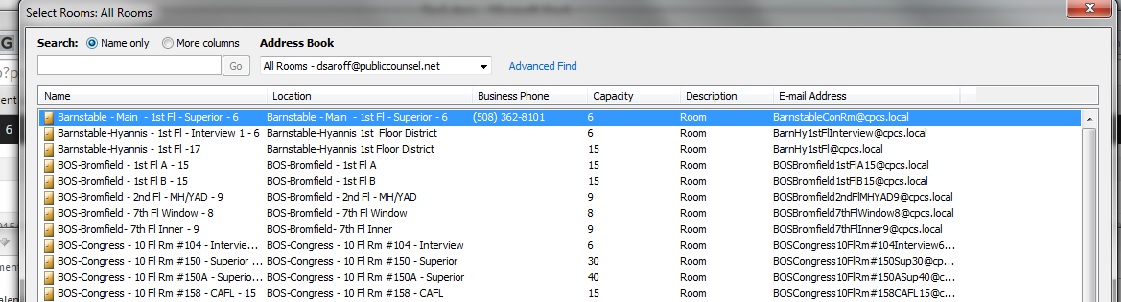
- Next to “Search” click “Name only” radio button to see all the Agency conference rooms
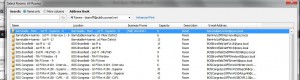
(click image to enlarge)
- You will notice there is a description of the room describing its location, size, features, etc. Select the conference room you want
If you discover an error or missing conference room, please email [email protected] with your correction - Double-click the conference room you want, and select “OK” at the bottom to select it
- You can now see if the room is available for that time (if unavailable, it will show as a solid blue bar – first image). If everything looks good (people and room are available), send your invitation.
- If you try to book a room and it is already booked, you will receive an email from the room declining the event
- If you are setting up a repeating event, and the room is booked for one of the times, you will receive an email from the room declining that date
NOTE: Use of ALL existing calendars for booking rooms, should be discontinued. If they are not discontinued, we will have issues with rooms being double-booked. Only book using the “Add rooms” feature.
Unfortunately, there is no way to automatically migrate booked rooms from the legacy calendars to the new system. So, if you have a room booked on an old calendar (i.e., anything before today), you will need to make sure you book it with the new system.
- For example: I have a monthly meeting booking the Bromfield 7th Fl Window Conference Room. I now need to use the new “Add Rooms” feature and book this room with the new system
- For example: I have a monthly meeting booking the Bromfield 7th Fl Window Conference Room. I now need to modify my existing meeting, and select a room with the new “Add Rooms” feature and book this room with the new system
To view a room calendar or add it to your calendar, take the following steps:
1. Go to your calendar
2. In the toolbar, click “open calendar”
3. Click “from room list”
4. Select the room calendars you want
To delete a room reservation:
To change or delete a room reservation, you must do it from the invitation you created in your personal calendar. You can not change it directly in the room’s calendar. So, for example, if you reserved the 7th Floor Inner conference room on Bromfield street for your staff meeting, but decide you don’t need the room, you would go to your “Staff Meeting” calendar appointment and delete the room from the “to” field and save the meeting invitation.