Email is a great form of communication, except when it isn’t. It allows quick, simple, flexible communications, but it also can overwhelm, confuse or distract us from our primary tasks. Below are five tips that can be helpful in managing your email inbox.
Slim down your inbox
Slimming your inbox is removing unnecessary email from your inbox. Slimming makes it easier for you to focus on what is critical. It means not “losing” emails or failing to answer critical ones. To slim it down:
- Delete anything immediately when responded to or acted on. If you have acted on an email, delete it then and there. Don’t wait.
- Dedicate some time regularly to the task of slimming your inbox. Ensure a time without distractions: shut off your IM clients, turn your phone on mute, close your office door, etc.
- It’s important that you be as undistracted as possible. For example, if you get in early, try this before the tumult of the day or put an appointment in your calendar to allocate time to slim your calendar.
Move email out of your inbox
Every new year, I create an Outlook folder named after the previous year (e.g., this year [2018] I created one called “2017”). I simply drag all my 2017 messages from my inbox to my 2017 folder. I do this because I have too many messages to scan through and determine which to preserve and which to delete. This way, I clear out my inbox, but I can find those old emails.
I also create project-related folders where I move emails related to a specific project. This way I know, for example, when I am looking for an email related to the “Email Project,” I can find it in the “Email Project” folder (rather than wading through my inbox).
Once you reply, delete
It’s quite simple. As soon as you reply to or forward a new email, delete it. If you get a reply, it’s likely to have the original email quoted. If not, there’s always a copy in your Sent Items folder.
If you really feel attached to a particular email and don’t want to delete it, move it to a folder. Whatever you do, don’t let it fester in your inbox after you’ve dealt with it. It will attract friends.
If you can’t get to it right away, make it a to-do or calendar item
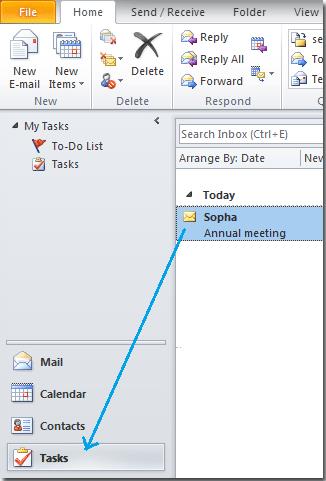
There are times when you can’t deal with an email right away (you need to confer, you don’t have the time, etc.). When that happens, turn it into a task (to do) or calendar appointment.
To do this, simply drag the email to the Calendar or Task link in the bottom, left window of Outlook. It will create a Task or Calendar appointment and then you can adjust it (set a date or time to respond or be reminded).
Use rules to route emails
Create rules to route emails into folders other than your inbox. This can let you automatically organize emails by email address, subject, sender, etc.
For example, I get the emails for the Q&A. I want them (of course), but I don’t want them clogging my inbox. So, I created a rule that automatically moves them from my inbox into a folder called Q&A. This way they never are in my inbox, and I know to check the Q&A box a couple times a week to see if there are messages.
For detailed instructions on how to use rules, please go to this Microsoft link.
Some of the ideas in this blog post were adapted from an Ars Technica article.